Wide Mode
- Wide mode will be added.
- In Settings (O), select the 16:9 or 16:10 aspect ratio to play in Wide mode.
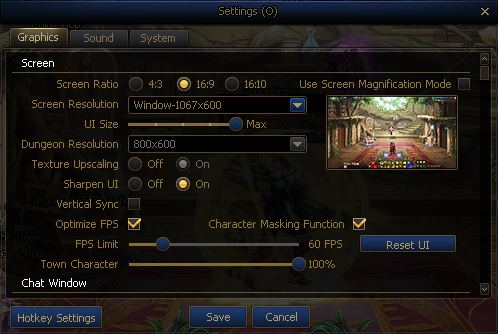
- In the Graphics tab, mark the "Use Wide Mode" checkbox to retain the previous Magnification aspect ratio.
- A new filter will be applied to certain resolution rates.
- You can use this new filter to enjoy more vivid 2D pixel graphics.
- Target Resolutions
|
Screen Ratio
|
Resolution
|
|
4:3
|
1600 x 1200
|
|
16:9
|
1700 x 956 (Applied if Screen Magnification mode is used)
2134 x 1200
|
|
16:10
|
1700 x 1062 (Applied if Screen Magnification mode is used)
1920 x 1200
|
- The Dungeon Selection screen will now be affected by your UI Size Adjustment options and window size.
Additional Character Changes
- Elementalist: The Gate skill's enemy detection process will be changed.
- Old: Targets in the current screen
- New: Targets in a certain range around you
- X Axis: 600 px (In the front and back of you)
- Y Axis: 250 px
Additional Dungeon Changes
- Noblesse Code: Queen Destroyer's incoming zoom-in effect will no longer cause the map to appear cut off.
Sharpen Option Added
- The Sharpen UI option will be added to Settings.
- This option applies the filter to sharpen UI at higher graphic resolutions.
|
Sharpen UI Off
|
Sharpen UI On
|
|
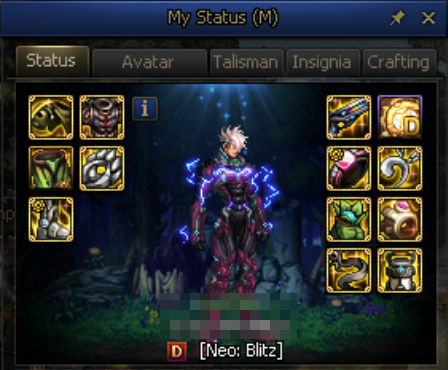
|
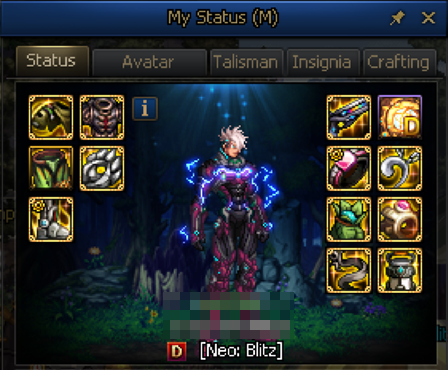
|
- This filter can't be applied to the minimum resolution rate or UI size.
UX/UI Convenience Updates
- Quest Book: Placing the cursor over the Location Guide button will no longer display the tooltip outside the screen.
- The cursor will no longer overlap the tooltip on the upper side of the Auction Hall screen when placed on it.
Goal Equipment Function Added
- The Goal Equipment function will be added to the Equipment Guide.
- Add the equipment you want to the Goal Equipment tab to check the source dungeons. Goal Equipment is applied per character.
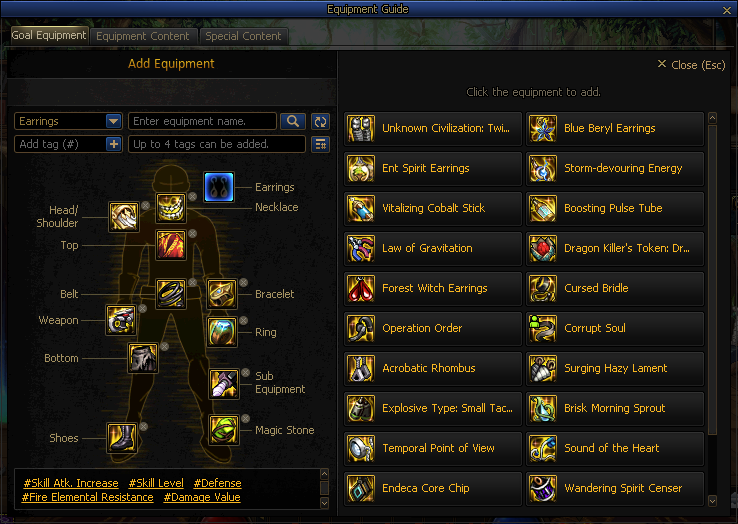
Add Equipment
- Search items or click each equipment slot to add equipment.
- Only Level 105 Fixed Option and Custom Epic equipment can be added.
- You can add favorites, just like you can in DFOpedia.
- The tags that match your Goal equipment will be added at the bottom of the Add Equipment pane.
- Click a tag to auto-add it to the Tag List.
Epic Item Dungeons
- You can check the source dungeons of all the equipment you've added at a glance.
- Bring the cursor over a dungeon slot to check the availability of your Goal Equipment in each dungeon.
- Select an added equipment slot to view the list of source dungeons per equipment type.
- Click a dungeon slot to navigate to the dungeon.
Service System Merge per Content
New Portals Added
- Lemidia Basilica will be added to the Portal list.
- It will be activated when you complete the Act question, What Disappeared with the Dark Side.
- This new portal will send you to the Holy Grail of Contradiction NPC inside Lemidia Basilica.
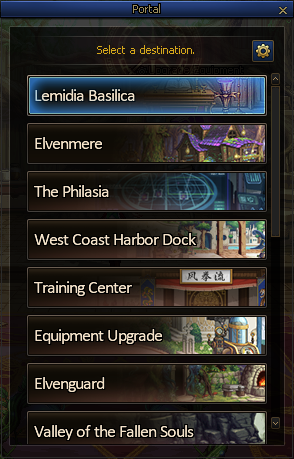
Holy Grail of Contradiction Improvement
- The Holy Grail of Contradiction NPC will be improved.
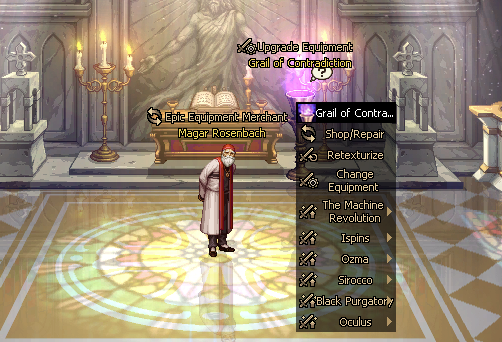
- You can now use the following systems through the Holy Grail of Contradiction NPC.
|
Name
|
Service
|
|
The Machine Revolution
|
- Tales of Bravery Exchange
- Upgrade Machine Revolution Equipment
- Convert Fusion Equipment
|
|
Ispins
|
- Tales of Bravery Exchange
- Upgrade Ispins Equipment
- Convert Fusion Equipment
|
|
Ozma
|
- Upgrade Ozma Equipment
- Ozma Golden Confessional
- Ozma The Holy Grail of Faith
|
|
Sirocco
|
- Upgrade Sirocco Equipment
- Sirocco Forge of Light
|
|
Black Purgatory
|
- Equipment Option Change
- Product Upgrade
- Product of Corruption Converter
|
|
The Oculus
|
|
- NPC Shop Products Added
- New products will be added to the Holy Grail of Contradiction NPC Shop.
|
Type
|
New Product
|
Selling Price
|
|
Material
|
Golden Beryl
|
Flawless Golden Beryl x1
|
|
Quad-Color Split Energy
|
Quad-Color Fused Energy x1
|
|
Consumable
|
Ispins Fusion Epic Equipment Selection Box
|
Quad-Color Split Energy x480
|
|
Ispins Fixed Option Epic Equipment Selection Box
|
Quad-Color Split Energy x480
|
|
Ispins Selection Card Album
|
Quad-Color Split Energy x480
|
|
Refund Pot: Ispins Fusion Epic Equipment Selection Box
|
Ispins Fusion Epic Equipment Selection Box
|
|
Refund Pot: Ispins Fixed Option Epic Equipment Selection Box
|
Ispins Fixed Option Epic Equipment Selection Box
|
|
Refund Pot: Ispins Selection Card Album
|
Ispins Selection Card Album
|
Equipment Option Tooltip Improvement
Simplify Equipment Option Tooltip
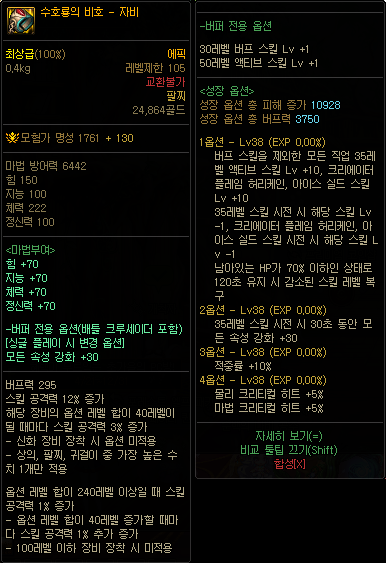
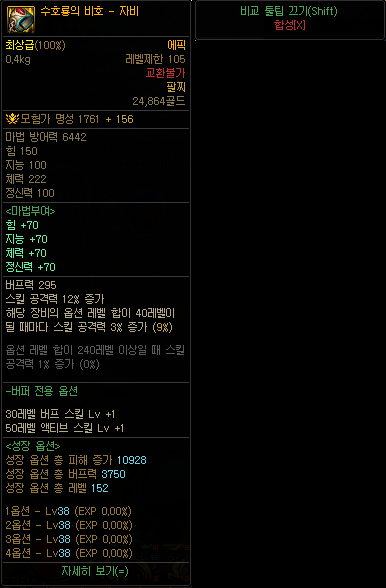
- The Simplify Equipment Option Tooltip option will be improved.
- Total Growth Option Levels will be added.
- The following information will be simplified and can now be checked in the Details window.
- Enchanting: Buffer-only options and additional DFOpedia info
- Equipment special stats
- Growth Option tooltip info
- Armor Mastery and additional Retexturization info
|
Old
|
New
|
|

|

|
Equipment Special Stats
- The options as per the equipment's total option levels and their current values will now be displayed.
|
Old
|
New
|
|

|

|
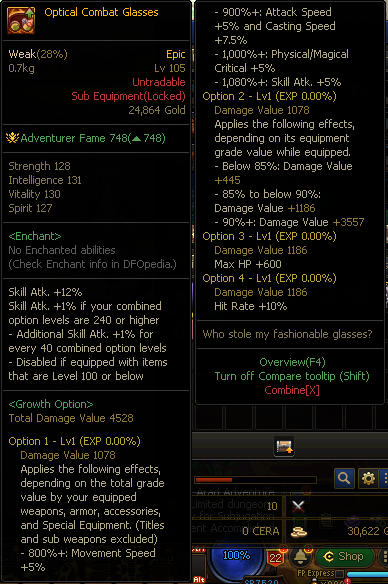
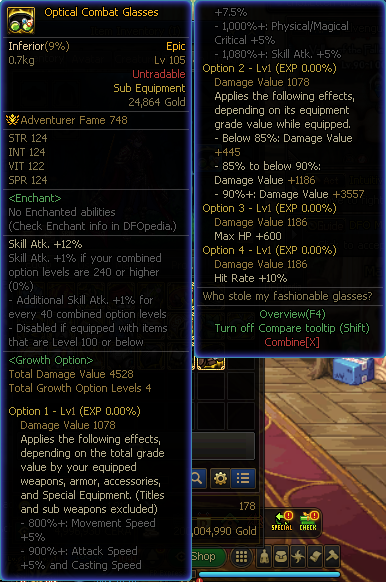
Equipment Option Activation
- Now, you can check the activated/inactivated Equipment options in the Equipment Options tooltip.
- This tooltip feature will only be enabled for your currently equipped items.
- At the moment, it's only available on the following equipment.
- Jade Ghost Tassets
- Locked Area
- Optical Combat Glasses
- Restrained Spirit Bead
|
Old
|
New
|
|
|
|
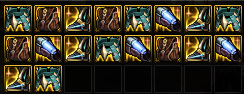
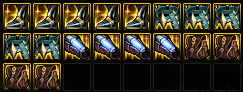
Sort Order
- You can now also sort equipment parts by Fame.
|
Before Sorting
|
After Sorting
|
|
|
|
- The Talisman tab's Sort Order priorities will be partially updated.
|
Type
|
Change
|
|
Skill
|
My Advancement → Skill Level → Rarity
|
|
Level
|
My Advancement → Equipment Level → Skill Level → Rarity
|
|
Grade
|
My Advancement → Rarity → Equipment Level → Skill Level
|
|
Organization
|
No change
|
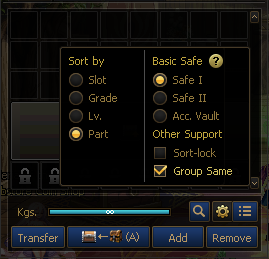
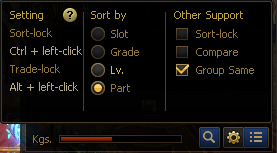
- When sorting items in your inventory or Safe, you can now group equipment by its kind before its Fame.
- In the case of Armor items, even their texture must be identical for them to be grouped together.
- To use this feature, select the Same Equipment First option in the Safe and Inventory Option Settings menu.
- Same Equipment First can be used with the following sorting standards.
- Grade
- Level
- Part
|
My Safe and Account Vault
|
Inventory
|
|
|
|
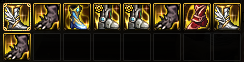
- My Safe and Account Vault's sorting priorities will be matched to the Character Inventory's.
|
Before
|
AFter
|
|
|
|
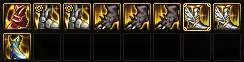
- The following items will be included in the Safe and Character Inventory's sorting priorities.
- Emblems
- Cards
- Beads
Mystical Grimoire
The Mystical Grimoire NPC will be added to Seria's Room.
- You can use this NPC to enchant Level 110 items and buy items.
- Shop/Repair (Sells Power Essence and other Growth-related items.)
- Equipment Engraving
- Equipment Inheritance
- Equipment Retexturization
- Option Growth/Transfer/Level Transfer
- This NPC doesn't appear in the Avatar Market Channel.
Guide Quests
- Account-based Guide quests will be added that appear when you meet certain conditions.
- (New) DFO Mission Guide: Talk to Santorini after reaching Level 110.
- (New) Monster Collection Guide: Talk to Hunter Von after finding a Monster Piece from Level 100 monsters.
- (Updated) Option Growth/Transfer/Level Transfer Guide: Talk to Loton Maximug after reaching Level 100 and finding a Level 105 Epic item.
- (Additional) Retexturization Guide: Enabled when you reach Level 100 and find a Level 105 Epic Armor item whose texture doesn't match your class.
Preset Registration Improvement
- The informative messages that appear when you add or save Talisman presets will be improved.
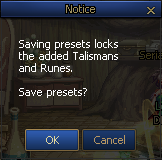
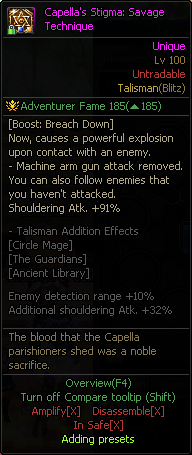
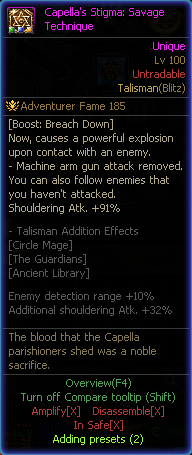
- When you add a Talisman preset, the number of your current presets will now be displayed at the bottom of the item tooltip.
- The Talisman preset-saving and application methods will be updated.
- Saving a Talisman preset will now also save your current skill style on it.
- Applying the Talisman preset will now automatically change your skill style to the one saved on it.
Emergency/DFO Mission Improvement
- The Emergency Mission Clear Reward banner will no longer overlap the Skills window.
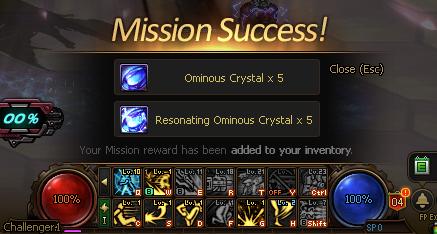
Some Weekly Mission conditions will be updated.
|
Before
|
After
|
|
Log In Daily 4 Times
Clear 10 Daily Missions
|
Clear 1 Limited Mission
Clear 4 Daily Missions
|
- The Daily Mission Completion reward will be changed to the Box type.
- Some Daily 50 P missions will be deleted.
- Clear White Land
- [White Land] Defeat Innocent Paidion
- [White Land] Defeat Boss: Angel of Chaos Luciferre
- Clear Vericollis
- [Vericollis] Defeat Monster of Light Python
- [Vericollis] Defeat Boss: Archangel Michael
- Clear Canyon Hills
- [Canyon Hills] Defeat Volt MX3
- [Canyon Hills] Defeat Boss: King Destroyer
- Clear Queen Fallt
- [Queen Fallt] Defeat Mad Rike
- [Queen Fallt] Defeat Boss: Queen Destroyer
- Clear King's Cradle
- [King's Cradle] Defeat Revived Gold Clown
- [King's Cradle] Defeat Tomboy Becky
- Clear Heblon's Altar
- [Heblon's Altar] Defeat Kalbarri of Light
- [Heblon's Altar] Defeat Boss: Abyss Walker
- Clear Nasau Forest
- [Nasau Forest] Defeat Drachen Angst Zero
- [Nasau Forest] Defeat Boss: Drachenjäger
- Clear Eternal Flame Lab
- [Eternal Flame Lab] Defeat Drachen Angst
- [Eternal Flame Lab] Defeat Boss: Eternal Flame Captain Stark
- Repair Equipment or Repair All
- New Daily 50 P missions will be added.
- Clear Optimal Level Dungeons
- Power Essence will be added to the Limited Mission Clear reward, the Golden Beryl Box.
- This Golden Beryl Box contains 1 Power Essence.
- The Golden Beryl Boxes you obtained before this update don't contain Power Essence.
Key Input Improvement
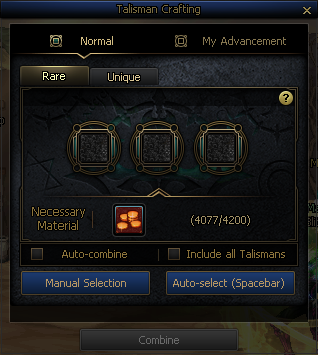
- You can now use the Spacebar to auto-select Runes and Talismans during their combination process.
Character Silhouette
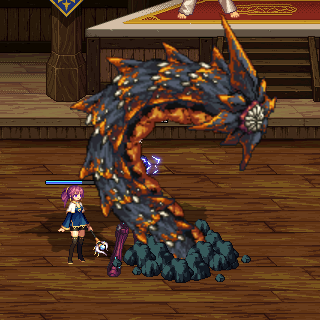
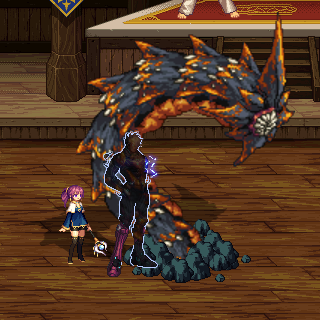
- The Character Silhouette feature will be added.
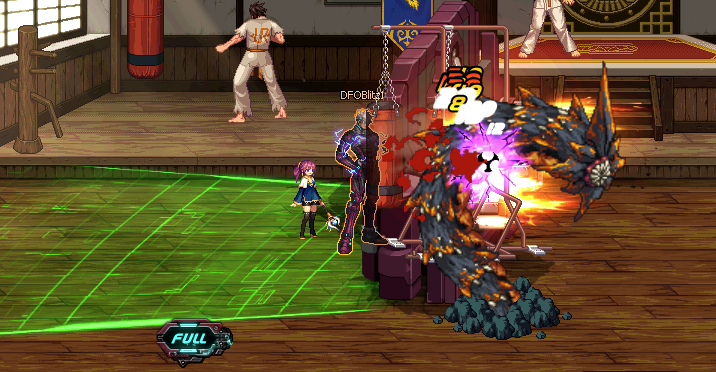
- Your character will appear in silhouette form when other players' effects or monsters overlap its sprite.
- You can also apply this feature to your own effects.
|
Before
|
After
|
|
|
|
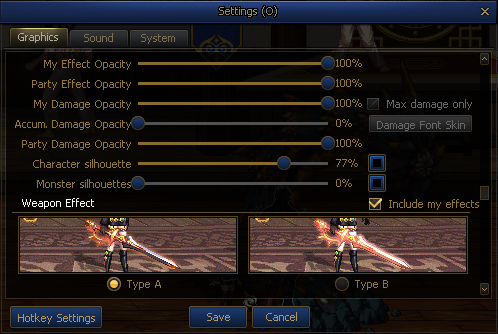
- You can configure character silhouette settings in Settings > Graphics.
- Silhouette Opacity Application
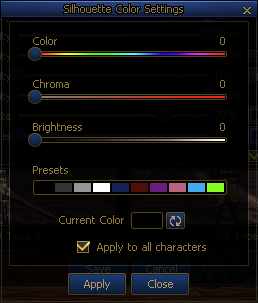
- Change Silhouette Colors
- At Settings > Graphics > Character Silhouette Display, check off Include my effects to exclude your effects.
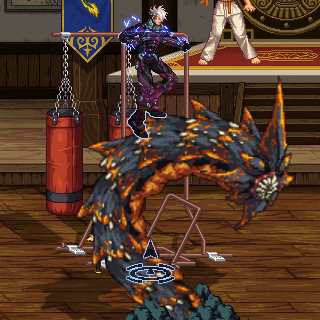
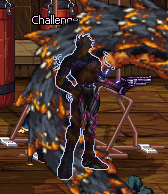
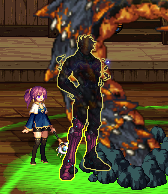
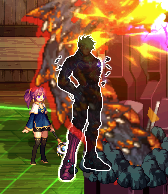
- This Character Silhouette feature is also applied to your ground spot when you jump.
- A different character silhouette is applied, depending on your character's status.
|
Normal
|
Super Armor
|
Invincible
|
|
|
|
|
Equipment Option Visibility Improvement
Barrier Level Display
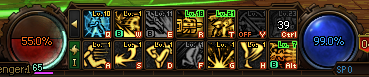
- To help you check the current statuses of your Barrier options, your HP bar and Party frames will be changed as following while you have Barrier options.
- The Barrier gauge will appear on your character HP bar, displaying the current barrier amount.
- The Barrier gauge will also be added to the upper side of your HP gauge in the Party frame.
- The Barrier gauge and gauge amount will be identical to the HP rates (%) displayed in the Option tooltips.
HP Restriction Display
- To help you check the current statuses of your HP Restriction options, your HP bar and Party frames will be changed as following while you have HP Restriction options.
- Your Max HP will appear restricted by the restricted amount.
- Your Max HP will appear restricted in the Party frame.
|
Character HP
|
Party Frame
|
|
|

|
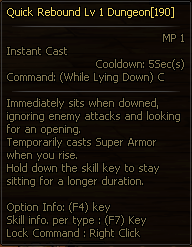
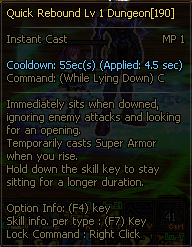
Cooldown Reduction/Recovery Displayed at the Same Time
The Skill tooltip will now reflect your Cooldown Recovery options in the displayed skill cooldown amount.
|
Before
|
After
|
|
|
|
Equipment Buff Icon Visibility Improvement
- The Equipment Buff icons will now display option stack values and durations.
- If two or more stackable options are on the same piece of equipment, then only the highest option will be displayed.
.png)
Item Selection Box Convenience Improvement
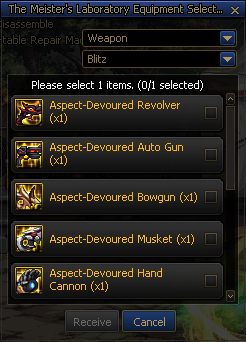
- Now, Level 105 Equipment Selection Boxes will let you select items by kind without selecting your class first.
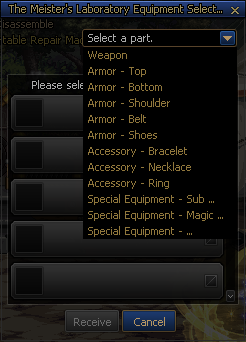
- When you select Weapon, your Advanced class will be automatically selected. You can change it to a different class.
Others
- The Skills window's Learning Level tooltip will be improved.
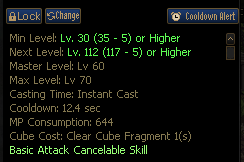
- The Initial Learning Level tooltip will be added.
- The Character Level required for Skill Level 1.
- The Tactician's Contract effect also counts.
- The Level Limit text will be changed to Next Level.
- The Character Level required for the next skill level, apart from the leveling options applied to the skill.
- Lv. will be added to the Mastery and Max Level values.
- You can now save your hotkey settings per character.
- The DFO Mission hotkey will be added.
- Default Key: F2
- The Material Shop button will be added to the Equipment Fusion menu by Flexible Armory at the Temporary Post.
 Edge
Click the "View Site Information" icon on the left side of the address bar,
Edge
Click the "View Site Information" icon on the left side of the address bar, Firefox
Select "Allow" in the notification window that appears
Firefox
Select "Allow" in the notification window that appears Other browsers
Allow blocked notifications in your browser’s settings.
Other browsers
Allow blocked notifications in your browser’s settings.
.jpg)


.jpg)
.jpg)
.jpg)
.jpg)
.jpg)
.jpg)
.jpg)
.jpg)
.jpg)
.jpg)
.jpg)
.jpg)
.jpg)
.jpg)
.jpg)
.jpg)
.jpg)
.jpg)
.jpg)
.jpg)
.jpg)
.jpg)
.jpg)
.jpg)
.jpg)
.jpg)
.jpg)

.jpg)
.jpg)
.jpg)
.jpg)
.jpg)

.jpg)


.jpg)

.jpg)


.jpg)


.jpg)